Schedule Posts on Facebook: A 2026 Guide for Creators
Oct 10, 2026 · 12 min read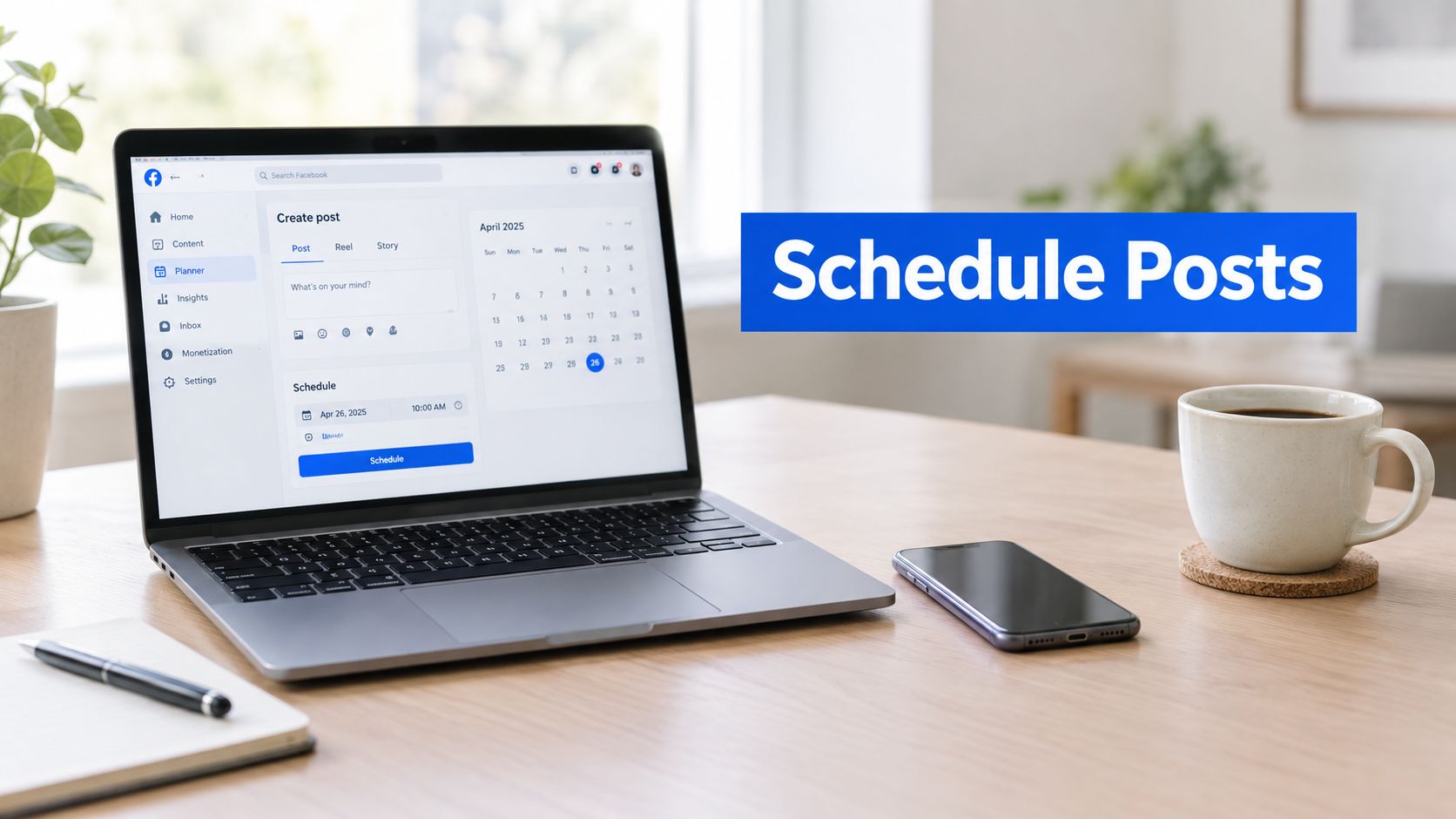
You've finished a week's worth of Facebook content late on Sunday night. The captions are written, the images are exported, and Thursday's post is ready to go. Without a scheduling workflow, you'll still need to stop what you're doing at the right moment each day, remember which Page to use, and hope the post doesn't remain a draft.
That's why learning to schedule posts on Facebook matters. The mechanics look simple, but the correct process depends on your account type, permissions, time zone, and tool tier. A reliable workflow turns Facebook from a real-time publishing task into a controlled content system.
Why Scheduled Publishing Matters on Facebook
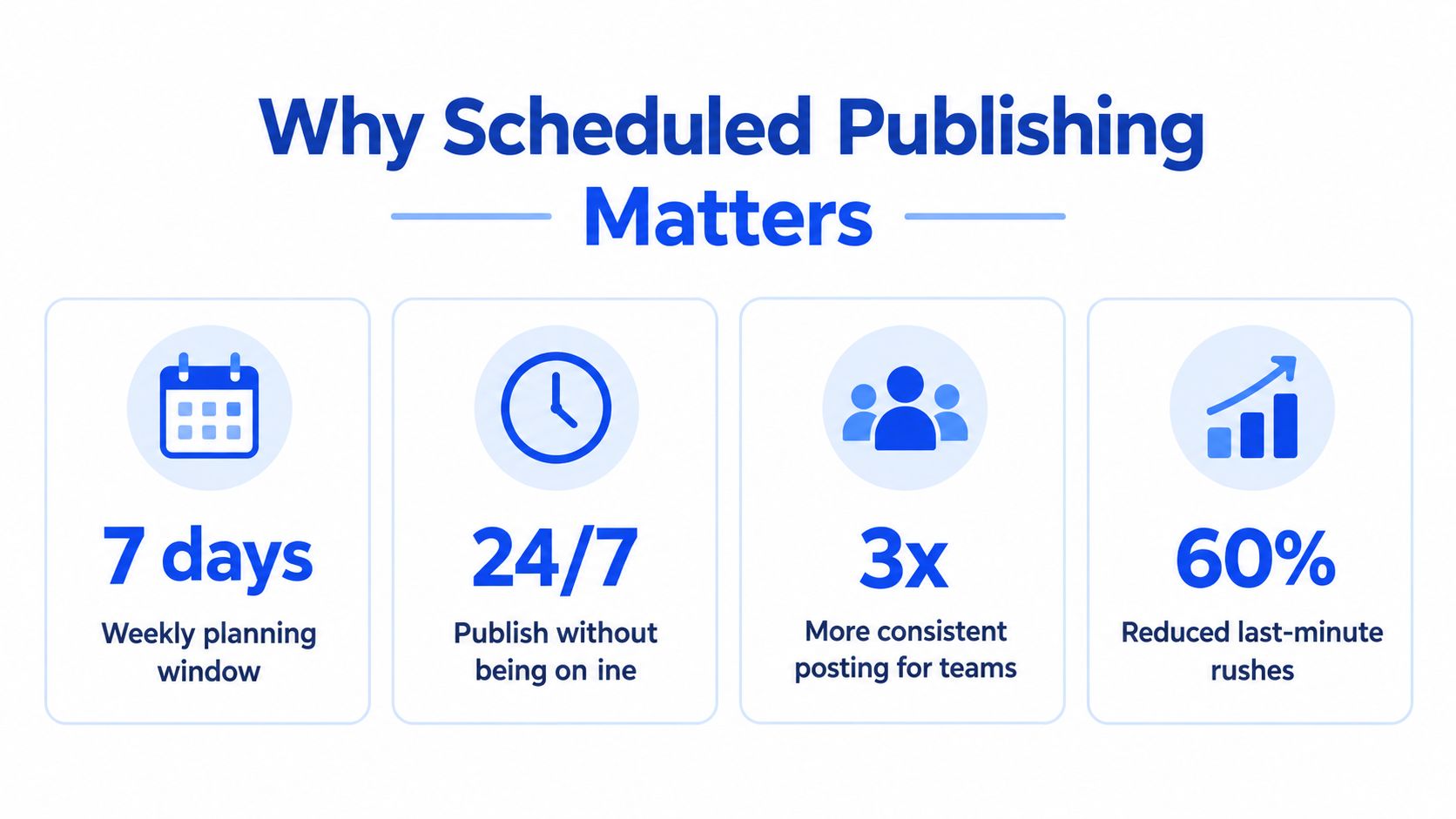
Facebook scheduling became important when Pages moved beyond informal, real-time communication and became working channels for businesses, creators, universities, and organizations. An administrator could prepare a post in advance, assign a future publication time, and maintain the Page without being online at every publishing moment.
That change affects more than convenience. A planned calendar lets a team coordinate campaigns, prepare content across time zones, and protect publishing windows when the person responsible is unavailable. It also makes it easier to compare content published at different times instead of relying on memory or occasional impulse posts.
Consistency creates a usable operating rhythm
A creator planning several posts on Sunday can review the week as one story. A nonprofit can coordinate an announcement with an email campaign. An agency can prepare client content while preserving time for community replies and urgent updates.
That distinction matters because scheduling handles planned distribution, not the entire social media job. You still need to answer comments, respond to messages, and adjust content when circumstances change. The calendar removes repetitive manual publishing from the critical path. A practical content system can help you plan a month of content without treating every post as a separate emergency.
Facebook's audience scale makes this workflow relevant to Pages of every size. Statista reported more than 3 billion monthly active users in late 2025, while approximately 32% of global users were between ages 25 and 34 and the audience grew 5.7% year over year. Those figures come from Statista's social network data, and they explain why small improvements in consistency or coordination can matter across large, distributed audiences.
Timing also deserves deliberate attention. A 2024 study analyzed 5,825 posts from 155 Vietnamese universities over 36 days. Compared with early-week posts, midweek posts produced 1.28 times as many reactions, 1.93 times as many comments, and 1.67 times as many shares. Afternoon posts produced 1.22 times as many reactions, 1.52 times as many comments, and 1.56 times as many shares compared with morning posts, according to the published study.
Those results don't mean every Page should copy the same schedule. They show why a calendar is useful. You can test time slots intentionally, repeat promising patterns, and build a publishing rhythm from your own audience response rather than posting whenever someone happens to remember.
How to Schedule Posts on Facebook Using Meta Business Suite
For a standard Facebook Page, Meta Business Suite is usually the first workflow to test. It keeps the Page connection native, makes the scheduled queue visible, and avoids adding another publishing permission to your stack.
Before writing the caption, confirm that you're working with the correct Page and that your account has the necessary Facebook or Task access. A surprising number of scheduling failures start with the wrong identity, not the content itself.
The native workflow
Select the Page. Open Meta Business Suite and verify the Page name before creating anything. If you manage several brands, don't rely on the last selected account.
Open the composer or Planner. Start a new post from the publishing area or choose a slot in Planner. The calendar view helps you see nearby content that could compete with the new post.
Draft the copy. Write the caption, add the intended link if needed, and check the call to action. Treat the preview as a production review, not a cosmetic step.
Attach and inspect media. Upload the image or video, then confirm that the crop, thumbnail, text treatment, and link preview appear correctly. A post can be technically scheduled and still look broken in the feed.
Enable scheduling. Choose the option to set a future date and time. Standard Page scheduling commonly starts about 20 minutes ahead and extends roughly 29 days, as described in Hootsuite's Facebook scheduling guide.
Confirm the time zone. Meta's scheduled time corresponds to the scheduler's current time zone. For international teams, write the time zone next to the campaign deadline in your content brief instead of assuming everyone sees the same local time.
Review audience and preview settings. Check the Page identity, visibility, media, copy, and selected time. This is the point to catch a wrong Page or an incorrect local hour.
Click Schedule, then verify the result. Return to Content or Planner and confirm that the item appears as scheduled or queued, not as a draft. Never treat the button click as proof that the workflow completed.
What to check before you leave the queue
Use a short handoff checklist for every important post:
- Page identity: The selected Page is the intended brand or client.
- Permissions: The person scheduling has the required access.
- Local time: The planned hour matches the audience and campaign time zone.
- Media: The preview shows the correct crop, thumbnail, and format.
- Status: The item appears in Scheduled, not Drafts.
- Campaign context: The post doesn't conflict with another announcement or live event.
Native scheduling works well when one Page or a small number of Pages need straightforward publishing. It becomes less comfortable when several people draft, approve, adapt, and monitor content across many accounts.
Native Scheduling Versus Third-Party Calendar Tools
The native route is usually the shortest path from caption to queue. A third-party calendar earns its place when the publishing problem is no longer just “put this post on Facebook,” but “coordinate this post with several accounts, people, formats, approvals, and reporting views.”
| Workflow need | Meta Business Suite | Third-party calendar |
|---|---|---|
| One Page and simple publishing | Direct and usually sufficient | May add unnecessary setup |
| Multiple networks | Focused on Meta surfaces | Centralizes supported channels |
| Team review | Basic workflow may be enough | Often provides drafts, approvals, and comments |
| Time-zone visibility | Requires careful manual checking | Can provide a shared planning surface |
| Status tracking | Review the native queue | May show draft, queued, and published states |
| Cross-channel tailoring | You create variations manually | Some tools help adapt copy and media |
| Analytics workflow | Native Page reporting | May combine account and post views |
The trade-off is control versus coordination. Meta Business Suite reduces the number of systems involved, which can simplify permissions and troubleshooting. A dedicated platform can reduce tab switching, but it introduces another connection that needs access management and monitoring.
Where native scheduling is strongest
Native scheduling makes sense for a solo Page owner who writes directly for Facebook, publishes occasional campaigns, and wants the fewest moving parts. It's also a useful fallback when a third-party connection fails or a high-stakes post needs manual review inside Meta's own environment.
Its limitations become visible when your calendar spans several networks or clients. You may need separate queues, repeated copy changes, and manual comparisons between account-level reports. Native tools also don't automatically solve the editorial question of whether a Facebook post should use the same wording, media treatment, or timing as a post on another network.
Where a calendar tool earns its keep
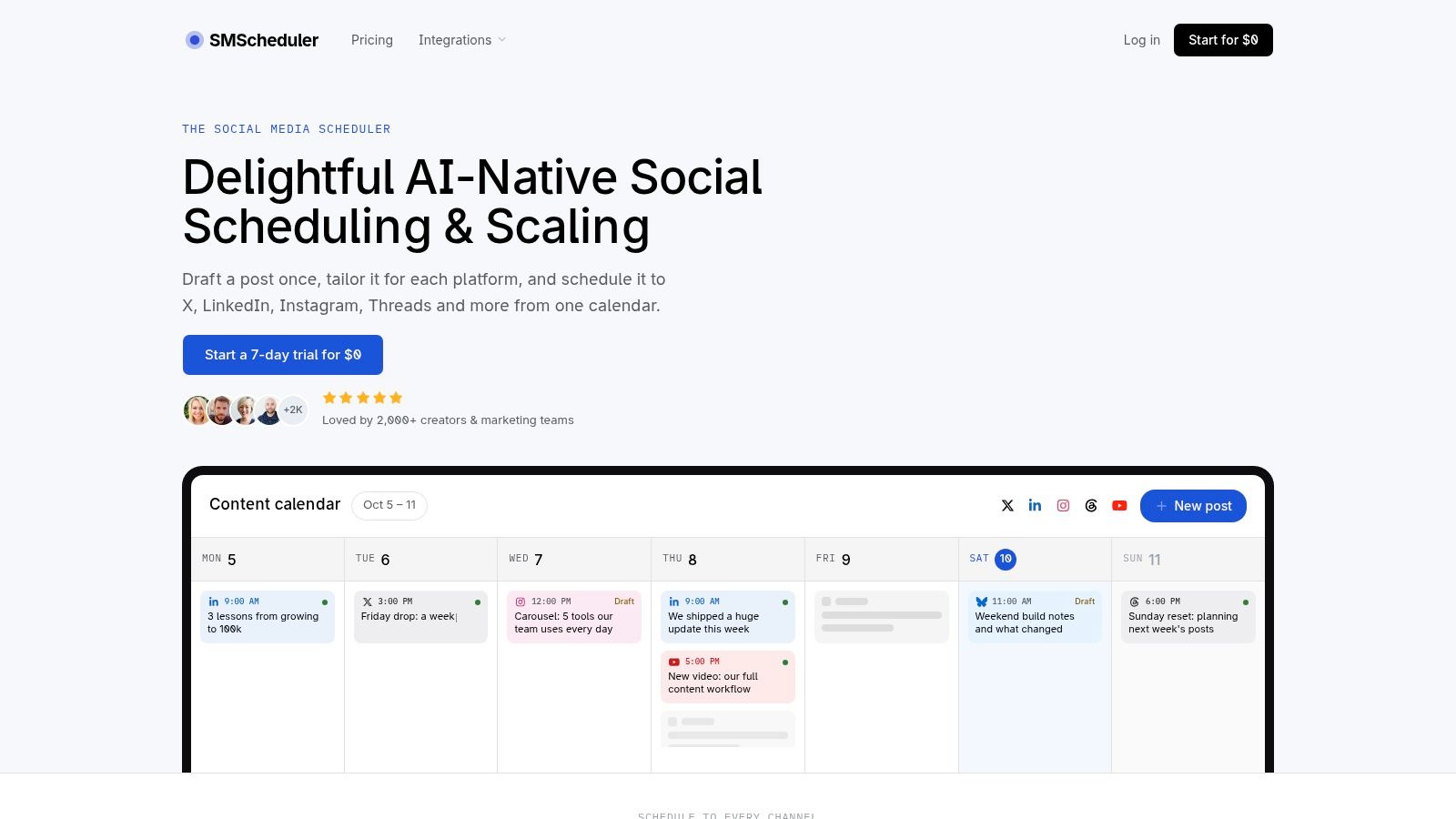
A shared calendar helps teams see the publishing sequence before content goes live. AI-assisted drafting can create an initial version, while channel-specific tailoring lets the team adjust wording and media rather than duplicating one generic post everywhere. For a practical workflow review, compare AI tools for content creation before choosing a platform based only on its scheduling button.
The strongest reason to add a scheduler is operational visibility. A team can see whether content is a draft, waiting for approval, queued, or published, then assign responsibility for the next action. That can cut posting time when the team uses the calendar as a working system, not merely as a place to store future dates. A focused workflow for cutting posting time in half should still include preview checks and failure handling.
Account Types and Tool Tiers That Change What You Can Schedule
The first question isn't “where's the Schedule button?” It's what kind of Facebook identity are you publishing from? A tutorial written for a Page may not match a professional-mode profile, and a standard Business Suite account may not expose the same planning horizon as a subscription-specific product.
Use this decision tree
If you publish for a standard Facebook Page, start with Meta Business Suite. Standard Page workflows commonly support scheduling from about 20 minutes to roughly 29 days ahead, and access depends on the Facebook or Task permissions assigned to the Page. The Page identity must be selected before you draft and queue the content.
If you publish from a professional-mode profile, stop before following a Page tutorial step by step. The available composer, scheduling controls, and supported formats can differ from the Page workflow, so check the controls visible on that profile rather than assuming Business Suite offers an identical path.
If you need to schedule posts or Reels much farther ahead, check whether your account has access to the relevant subscription-specific capability. Meta's newer Meta One documentation says subscribers can schedule posts and Reels up to 365 days in advance, with recommended times based on follower activity, as described in Meta's business documentation.
If you're scheduling for clients or several Pages, validate access before building the calendar. A person may be able to create content but lack the permission required to publish, or may be connected to a different Page than the one shown in the campaign brief.
Match the format to the surface
Meta's mobile instructions distinguish between posts, Reels, and Stories, and Facebook posts can also be saved as drafts. That means “Facebook scheduling” isn't one universal action. A post may be available in one interface while a Reel or Story follows a different creation path, with different preview and editing behavior.
The practical rule is to test one item for each account type and format you use. Confirm the available scheduling window, inspect the preview, and verify the resulting status in the queue. If a guide's buttons don't match your dashboard, treat that mismatch as a product, permission, or account-surface issue, not as evidence that you missed an obvious setting.
Timing Experiments You Can Run With Scheduled Posts
Generic “best time to post” advice is useful only as a starting hypothesis. One analysis summarized research involving more than 2 billion engagements and identified Monday through Thursday as generally stronger Facebook publishing days, with weekday activity often concentrated in the morning and early afternoon. Another 2025 analysis reported weekday activity concentrated around 9 a.m. to 12 p.m., while a separate cross-study summary described an 8 a.m. to 11 a.m. activity peak from analysis of more than 2.5 billion engagements, as reported by Social Media Today.
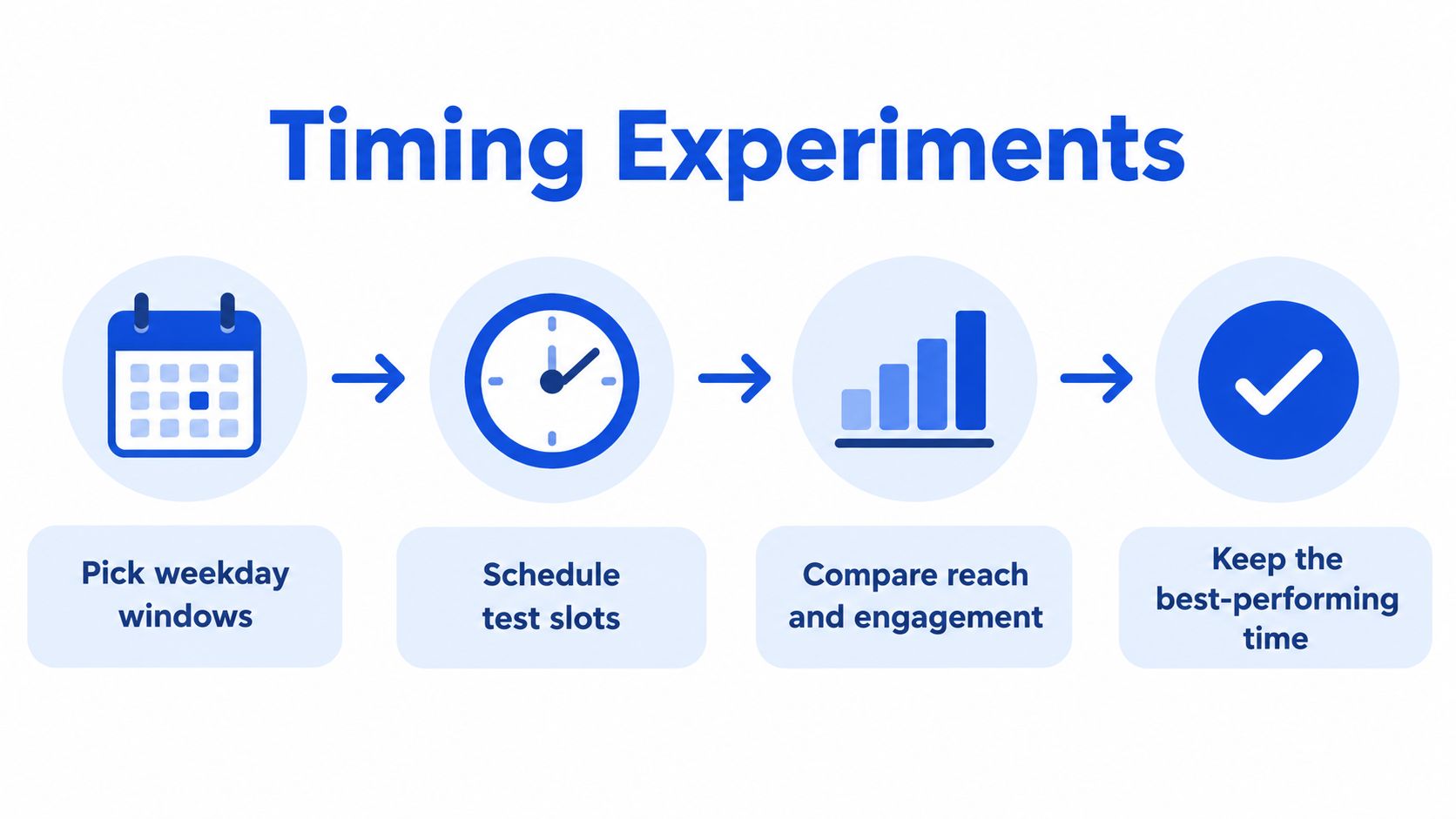
Use those windows as test cells, not instructions. Your audience may work different hours, live across several time zones, or respond differently to video, links, announcements, and community posts.
Build a clean test
Start with a defined objective. If the post is intended to drive discussion, comments and shares matter more than a superficial view of reach. If it supports a landing page, include link clicks and engagement rate in the review.
Schedule at least two nearby time slots during each test period and retain a control slot. Keep the weekday, format, audience, objective, and distribution method as similar as practical, then change one timing variable. Record the audience time zone instead of comparing local clock times without context.
Track:
- Reach: How many people saw the post.
- Reactions: Whether the content earned lightweight responses.
- Comments: Whether the timing supported conversation.
- Shares: Whether people passed the post to others.
- Link clicks: Whether the scheduled hour supported action.
- Engagement rate: How response compares with distribution.
Separate organic and paid distribution. Also separate content formats and objectives. Otherwise, a particularly strong video or campaign can make one hour look better when the creative, not the timing, caused the difference.
Testing rule: Don't declare a winning time from one post. News, creative quality, seasonality, and distribution can outweigh the clock.
Review native Page analytics after results stabilize and compare matched cohorts over several weeks. Keep the strongest time only when it performs consistently across comparable posts. If you're also working on response volume, a practical guide to getting likes on Facebook can complement the timing test, but it shouldn't replace controlled measurement.
Building a Reliable Control Loop for Scheduled Content
Scheduling removes the need to publish manually at the chosen moment. It doesn't guarantee that the post will publish.
Meta documents errors during creation, scheduling, and publishing. If something fails, check Content and Scheduled, inspect the affected item, and publish it manually when appropriate. The queue needs an owner, especially for a campaign that cannot tolerate a gap.
A queued post is an operational commitment, not proof of delivery.
Use a lightweight control loop:
- Confirm the time zone: Check the scheduler's current time zone before important campaigns.
- Review the queue: Inspect Planner and Scheduled after queuing.
- Check failures: Look for failed items before the publication window closes.
- Assign access: Give a named person the required Page or Task access.
- Verify high-stakes posts: Manually inspect important publications after they go live.
This approach fits naturally into a weekly content system, where planning, approval, publishing, and review happen on a repeatable cadence. The best workflow treats Facebook scheduling as controlled operations, with a fallback path when the platform rejects or delays a post.
Social Media Scheduler brings Facebook Page planning, channel-specific drafting, scheduling, automated publishing, and performance measurement into a shared calendar. If you want to coordinate Facebook with other networks while keeping statuses such as draft, queued, and published visible, visit Social Media Scheduler and evaluate it against your current workflow.